Resource Allocation - How To Get Maximum Benefit From Limited Resources?
Learn how to use MakeItRational (group decision making software) and Solver (linear programming and optimization add-in for Excel and Calc) to allocate limited resources (e.g. funds, time, equipment) between alternatives (e.g. projects, investments) in a way that helps achieve the maximum benefits.
What is resource allocation?
- Company wants to start the 50 strategic projects that require funds and qualified consultants. The company does not have resources to implement all the projects. Which projects should be chosen?
- Our budget is 3 000 000 USD. There are 60 projects worth 4 200 000 USD on the investments list. How to allocate capital?
- R&D department has developed 10 concepts for the new products but the organization does not have resources to implement all. How to choose an optimal products portfolio?
In all these situations, we want to allocate limited resources among a set of alternatives in a way that gives us maximum benefits.
How to allocate resources?
Step 1. Evaluation of allocation benefits
At first, we evaluate benefits of allocating resources to particular alternatives. On this basis we will be able to give priority access to resources for beneficial alternatives during the next step (optimization).
The purpose is to assign a value to each alternative, determining its benefits (the higher the value the better alternative). In this process, group evaluation in context of multiple criteria may be needed.
In order to evaluate benefits we use MakeItRational - a tool for multi-criteria decision making and prioritization (based on Analytic Hierarchy Process a method of multi-criteria decision analysis). An important feature of MakeItRational is support for collaborative evaluation as the resource allocation decisions usually aren't taken individually.
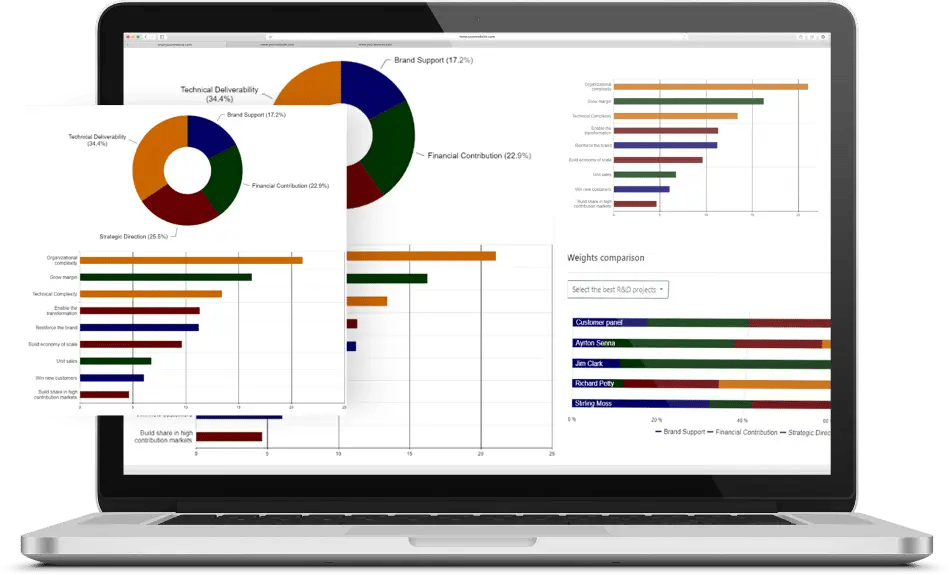
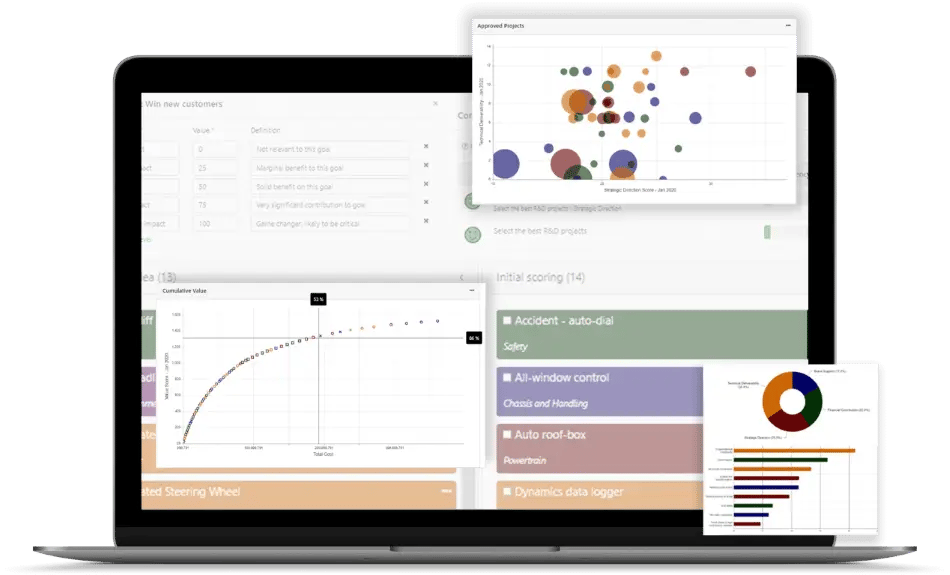
MakeItRational projects prioritization demo
This article does not deal with the multi-criteria prioritization and we use only the final result of this process. Table below presents a result of multi-criteria prioritization - alternatives with utility values (also referred to as priority) which determine how good alternatives are in context of considered criteria.
| Alternative | Utility |
|---|---|
| TOTAL | 1.00 |
| Project 1 | 0.20 |
| Project 2 | 0.10 |
| Project 3 | 0.25 |
| Project 4 | 0.05 |
| Project 5 | 0.30 |
| Project 6 | 0.10 |
Step 2. Portfolio optimization
At this stage, we use mathematical tools, which identify a set of alternatives that should be selected in order to maximize overall benefits. This is being done on the basis of information about available resources, priorities, resource requirements, dependencies between alternatives.
|
=> |
|
How to optimize portfolio?
Benefit-cost ratios (simplified approach)
- Calculate benefit-cost ratios.
- Rank projects using benefit-cost ratios.
- Select the highest-ratio projects until resources are exhausted.
This approach is fast, returns well approximated results and doesn’t require advanced calculations. However, it may not spend all available resources and portfolio may be not as beneficial as it could be. There are also problems with taking into account multiple constraints and relations between alternatives.
| Alternative | Utility |
Cost [mln USD] |
Benefit-cost [Utility / Cost] |
|---|---|---|---|
| TOTAL | 1.00 | 11.80 | - |
| Project 3 | 0.25 | 1.50 | 0.167 |
| Project 5 | 0.30 | 2.50 | 0.120 |
| Project 1 | 0.20 | 1.70 | 0.118 |
| Project 4 | 0.05 | 0.60 | 0.083 |
| Project 2 | 0.10 | 2.00 | 0.050 |
| Project 6 | 0.10 | 3.50 | 0.029 |
If we use this approach to allocate 8 mln USD we will select Projects 3, 5, 1 and 4 worth 6,3 mln USD with total utility 0,80. However, we could get higher utility (0,85) if we replace Project 4 with Project 2 and it is still in a budget (7,7 mln USD).
Linear programming (advanced approach)
In examples below we use OpenOffice Calc Solver but you can get exactly the same results with Excel Solver.
1. Create spreadsheet
| DV | Alternative | Utility | Resource | ||
|---|---|---|---|---|---|
| Eval | Alloc | Req'd | Alloc | ||
| TOTAL | 1.00 | 1.00 | 82 000 | 82 000 | |
| 1 | Project 1 | 0.20 | 0.20 | 15000 | 15000 |
| 1 | Project 2 | 0.10 | 0.10 | 8000 | 8000 |
| 1 | Project 3 | 0.25 | 0.25 | 15000 | 15000 |
| 1 | Project 4 | 0.05 | 0.05 | 7000 | 7000 |
| 1 | Project 5 | 0.30 | 0.30 | 25000 | 25000 |
| 1 | Project 6 | 0.10 | 0.10 | 12000 | 12000 |
- DV - decision variables. Cells contain the result of optimization. Their values (0 or 1) are being set by Solver. As a starting point we set DV = 1 for all alternatives which means that all alternatives receive resources. Solver will exclude from portfolio (DV = 0) some alternatives to meet the constraints and get maximum possible total allocated utility.
- Alternative - alternative name.
- Eval utility - evaluated utility. Cells contain utilities of alternatives evaluated in MakeItRational tool.
- Alloc utility - allocated utility. Values are calculated from the formula: DV x Evaluated utility. Allocated utility value determines the project's contribution to the overall portfolio utility. When DV = 1 (resource allocated) the utility of portfolio increases by the utility of alternative. When DV = 0 (not allocated) the utility of alternative doesn’t affect the overall utility of portfolio.
- Req'd resource - required resource. Specifies the amount of resources required by alternative
- Alloc resource - allocated resource. Values are calculated from the formula: DV x Required resource. Specifies the amount of resources allocated to the alternative.
- Total evaluated utility - sum of cells above; should be equal to 1; not taken into account during optimization.
- Total allocated utility - sum of cells above; shows the total utility of portfolio; the goal of optimization is to maximize this value.
- Total required resource - sum of cells above; shows total need for resources; not taken into account during optimization.
- Total allocated resource - sum of cells above; shows the total amount of allocated resources; constraint during optimization (we can’t exceed the available resources).
2. Run Solver
Microsoft Excel – Solver is not loaded by default. Read how to load it here
OpenOffice Calc: go to Tools -> Solver
Img. 1. Starting Solver.
3. Configure Solver
Img. 2. Solver configuration.
- Target cell – cell containing the objective we optimize. In our case it will be total allocated utility.
- Optimize result to – type of optimization. We are looking for maximum benefit so set it to Maximum.
- By changing cells – cells that will be changed during optimization, in our case DV.
- Limiting condition 1 – binary condition on DV cells, only 0 (not allocated) or 1 (allocated).
- Limiting condition 2 – limit on the total allocated resource - reject results that exceed available resources.
By adding additional limiting conditions, we can consider multiple resources and the dependencies between alternatives.
4. Solve and get result
When you press the solve button the Solver will optimize and modify DV cells thereby indicating which alternatives should be allocated and which not. Example result below:
Img. 3. Result of resource allocation.
5. Sensitivity analysis
Perform a sensitivity analysis of the results. Scenarios to consider:
- What if the resource limit increases by 10%, 20%, 30%? Sometimes a small increase can significantly increase the utility of portfolio.
- What if the resource limit decreases by 10%, 20%, 30%?
- What if we exclude the project from the portfolio?
How to deal with multiple resources?
Single resource (e.g. funds) may be sufficient to capital planning and budgeting process. But in other applications, such as project or product portfolio management, we often need to consider additional resources such as time, qualified specialists, equipment, etc.
Additional resources can be easily included in the model by adding more columns and limiting conditions.
How to consider dependencies between alternatives?
In real applications it is often necessary to consider dependencies between projects. For example, realization of project forces or prevents the implementation of others. Dependencies can be included in the optimization by creating the conditions for the column DV.
Below is a list of basic dependencies that can exist between alternatives during the resource allocation process. You can mix them and create complex scenarios.
Exactly one from the group – on the list of alternatives we have a subset from which we must choose exactly one alternative (not 0, not 2, not more) to the final portfolio.
- In empty cell add a formula that sums DV values for alternatives from the subset.
-
Add the limiting condition: value = 1
(undesirable result is when the value of that cell is different than one)
Maximum one from the group – on the list of alternatives we have a subset from which we can choose at most one alternative to the final portfolio. For example, they are different versions of the same project.
- In empty cell add a formula that sums DV values for alternatives from the subset.
-
Add the limiting condition: value <= 1
(undesirable result is when the value of that cell is greater than one)
Minimum one from the group – on the list of alternatives we have a subset from which we must choose at least one alternative to the final portfolio. For example, all projects are divided into groups corresponding to departments and we must ensure that each department receives a minimum one project.
- In empty cell add a formula that sums DV values for alternatives from the subset.
-
Add the limiting condition: value >= 1
(undesirable result is when the value of that cell is equal to one)
Contingent – if A then B (but B is independent of A). For example, renovation of the property may take place only if buy it, but you can buy it without renovation.
- In empty cell add a formula that subtracts from independent alternative (purchase) DV value the DV value of dependent alternative (renovation).
-
Add the limiting condition: value >= 0
(undesirable result is when the value of that cell is smaller than zero)
Mutual contingent – 2 alternatives that must be implemented together.
- In empty cell add a formula that subtracts DV values of alternatives.
-
Add the limiting condition: value = 0
(undesirable result is when the value of that cell is different than zero)
Mutual contingent – 2 (or more) alternatives, which must be implemented together.
- Merge alternatives into one with added utility and resources.